Documentation
From installation to your first encrypted file in 5 steps.
Quick Start
Download and install
Go to the download page and install Filarr on your platform (Windows, macOS, or Linux). Installation takes less than a minute.
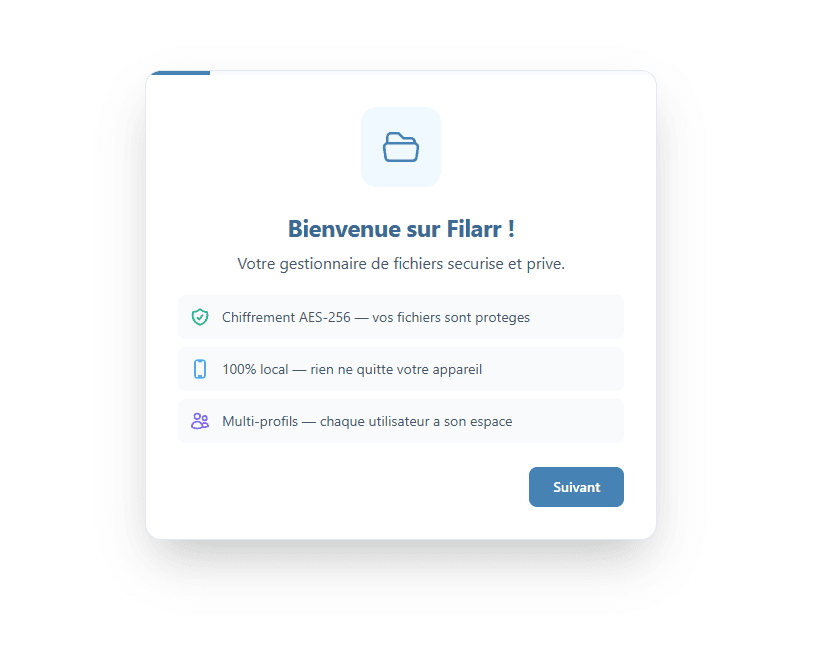
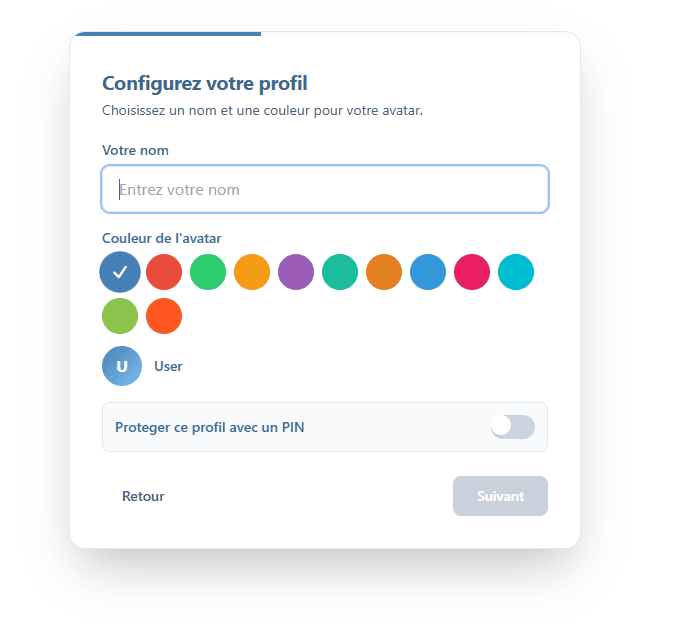
Create your profile
On first launch, Filarr asks you to create a profile with a password. This password generates your encryption key (KEK). Remember it well — it cannot be recovered.
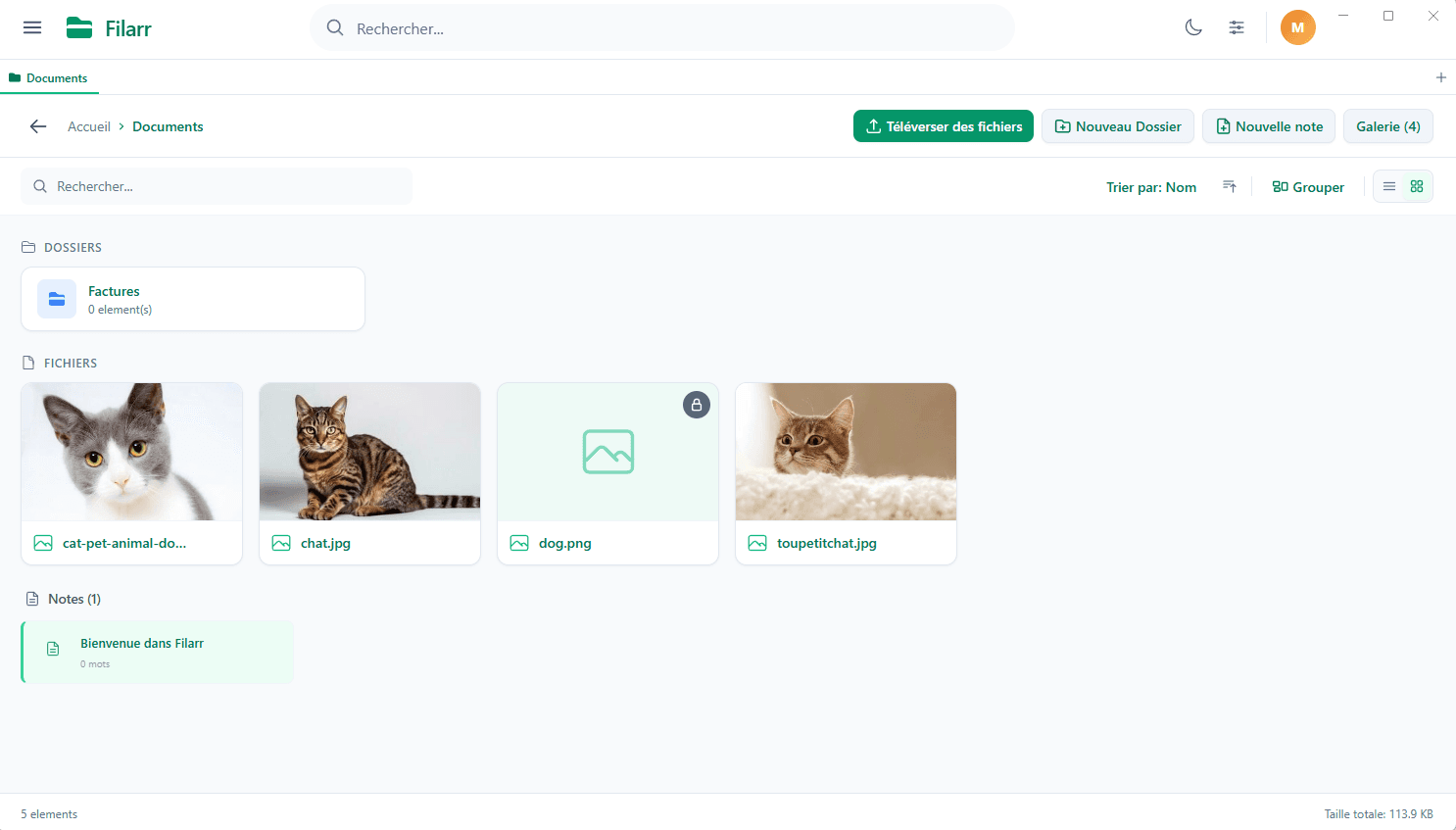
Add your files
Drag and drop your files into Filarr. They are encrypted instantly with AES-256-GCM. You can switch between views: list, grid, kanban, masonry.
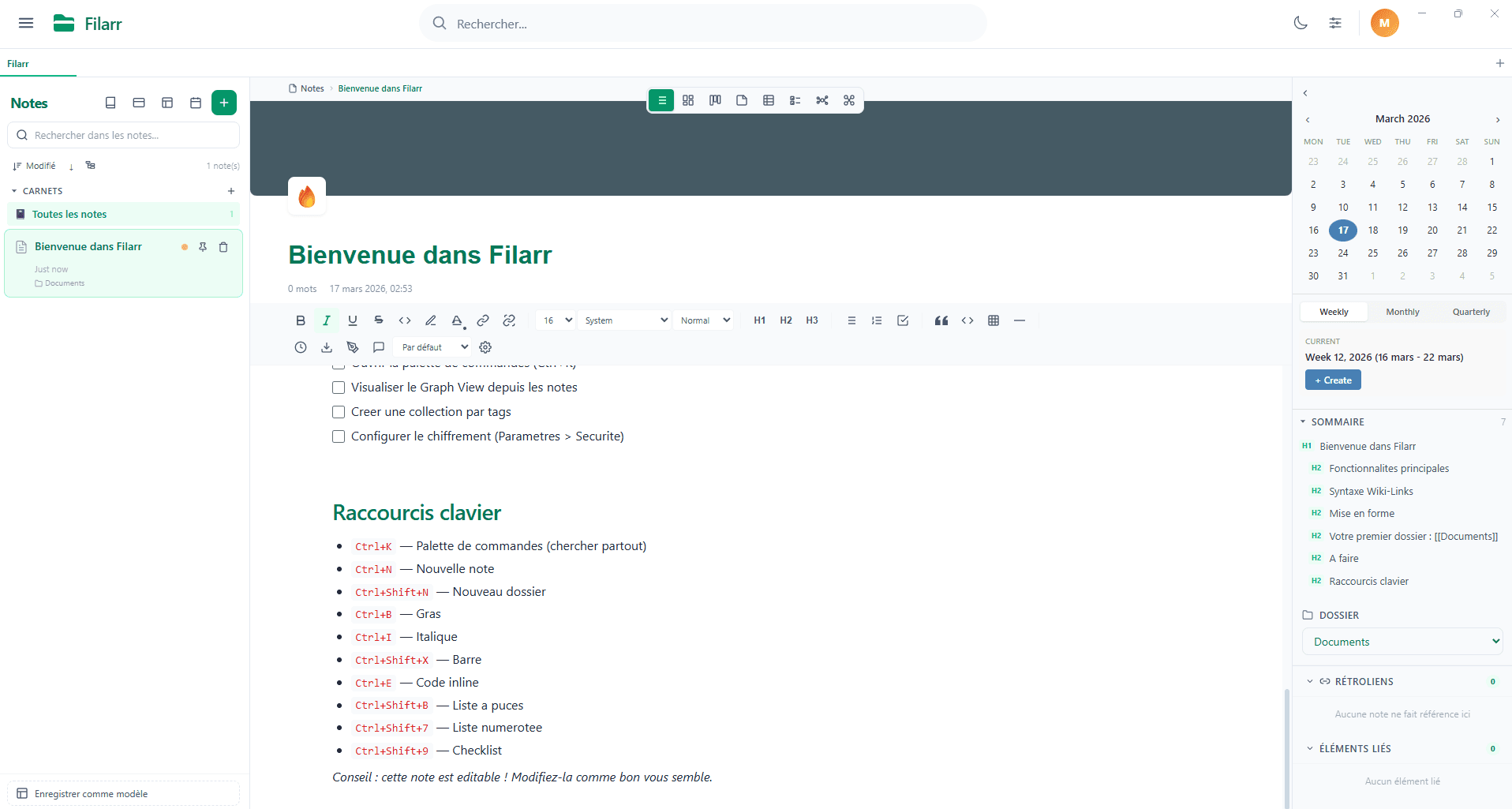
Create your first note
Click "New note" to open the rich editor. Add text, tasks, tables, wiki-links to other notes. Everything is encrypted automatically.
Explore the graph view
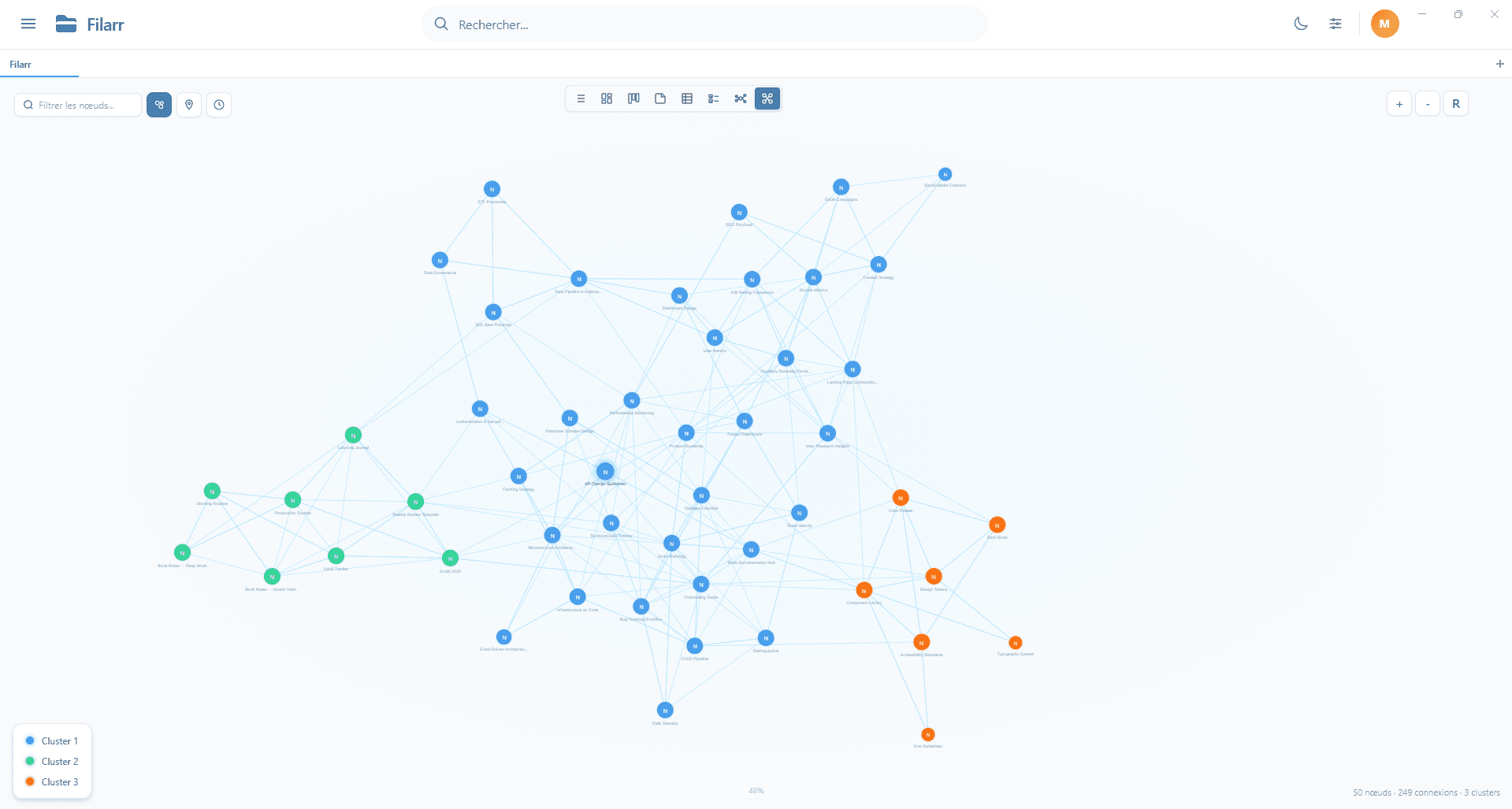
Open the graph view to visualize connections between your notes and files. Wiki-links and tags automatically create relationships visible in the graph.
Keyboard Shortcuts
Navigation
- New noteCtrl+N
- Daily noteCtrl+Shift+D
- Graph viewCtrl+Shift+G
- Focus modeCtrl+Shift+F
- Command paletteCtrl+P
Editor
- Slash commands/
- Wiki-link[[
- BoldCtrl+B
- ItalicCtrl+I
- HighlightCtrl+Shift+H
Views
Switch between views using the selection bar at the top of the editor.
List
Sidebar + editor. Sort by date, title, or word count.
Masonry
Pinterest-style card grid with content preview.
Kanban
Drag-and-drop columns (Inbox, In Progress, Done).
Sticky Notes
Free-form 2D canvas with colorful repositionable notes.
Canvas
Infinite whiteboard with SVG connection lines between notes.
Graph
Interactive network with physics simulation and cluster detection.
Wiki-links & Graph
Creating links
[[Note]]Bidirectional link to a note
[[file:doc.pdf]]Link to a file
![[Note]]Transclusion — embed a note’s content inside another
Automatic backlinks
The right panel of the editor shows all backlinks (notes pointing to the current note), outgoing links, and automatically detected potential links. Notes without connections are flagged with an "orphan" badge.
Graph features
- Real-time physics simulation (force-directed layout)
- Automatic cluster detection (Louvain algorithm)
- Heatmap — visualize note recency (red = recent, blue = old)
- Time travel — see your graph as it was at any point in time
- 3 node types: notes (circles), files (squares), folders (hexagons)
Frequently Asked Questions
I lost my password, what do I do?
Use your recovery phrase (12 words, generated at onboarding) to restore your encryption password. If you’ve lost that too, your data is permanently inaccessible: nobody, including us, can decrypt your files. Keep your recovery phrase in a safe place.
Where is my data stored on disk?
By default in your user folder: Windows: %APPDATA%/Filarr, macOS: ~/Library/Application Support/Filarr, Linux: ~/.config/Filarr. Each profile has its own isolated folder.
What file formats are supported?
51+ formats with built-in preview: PDF, images (PNG, JPG, SVG, WebP), videos (MP4, WebM), audio (MP3, WAV with waveform), source code (with syntax highlighting), Markdown (with Mermaid and KaTeX), and more.
How do I uninstall properly?
Uninstall the application normally (Add/Remove Programs on Windows, Trash on macOS). To remove all data, also delete the user data folder mentioned above.
Is my data sent anywhere?
No. Filarr runs 100% locally. The only network connection is the update check, which only transmits your version number and OS — no personal data.